WOLKEN TICKET PROCESS

Created by Alberto Mejia, Modified on Mon, 29 Sep, 2025 at 10:41 AM by Alberto Mejia

WOLKEN TICKET PROCESS


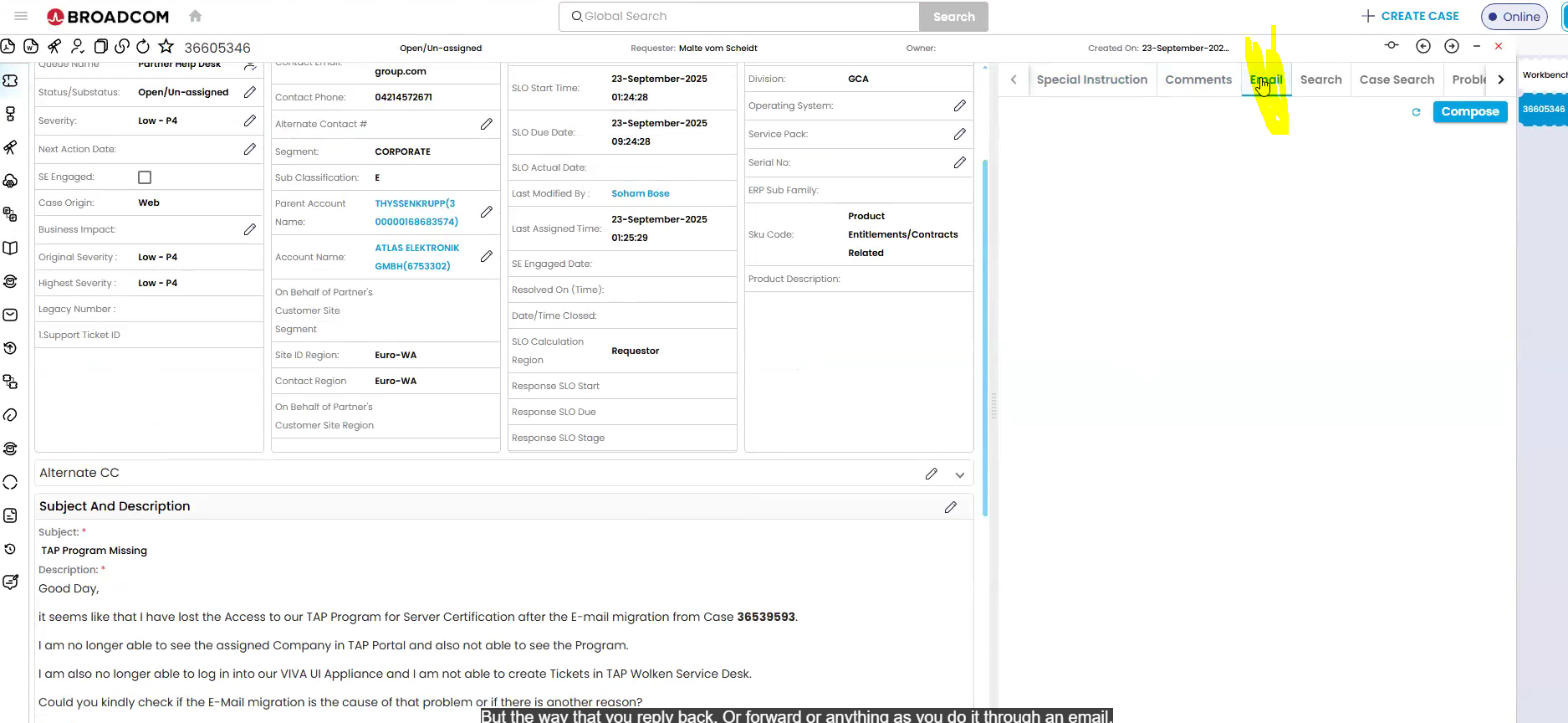
  1. Login to OKTA and head over to the Customer Support Portal tile.
A screenshot of a computer

AI-generated content may be incorrect.


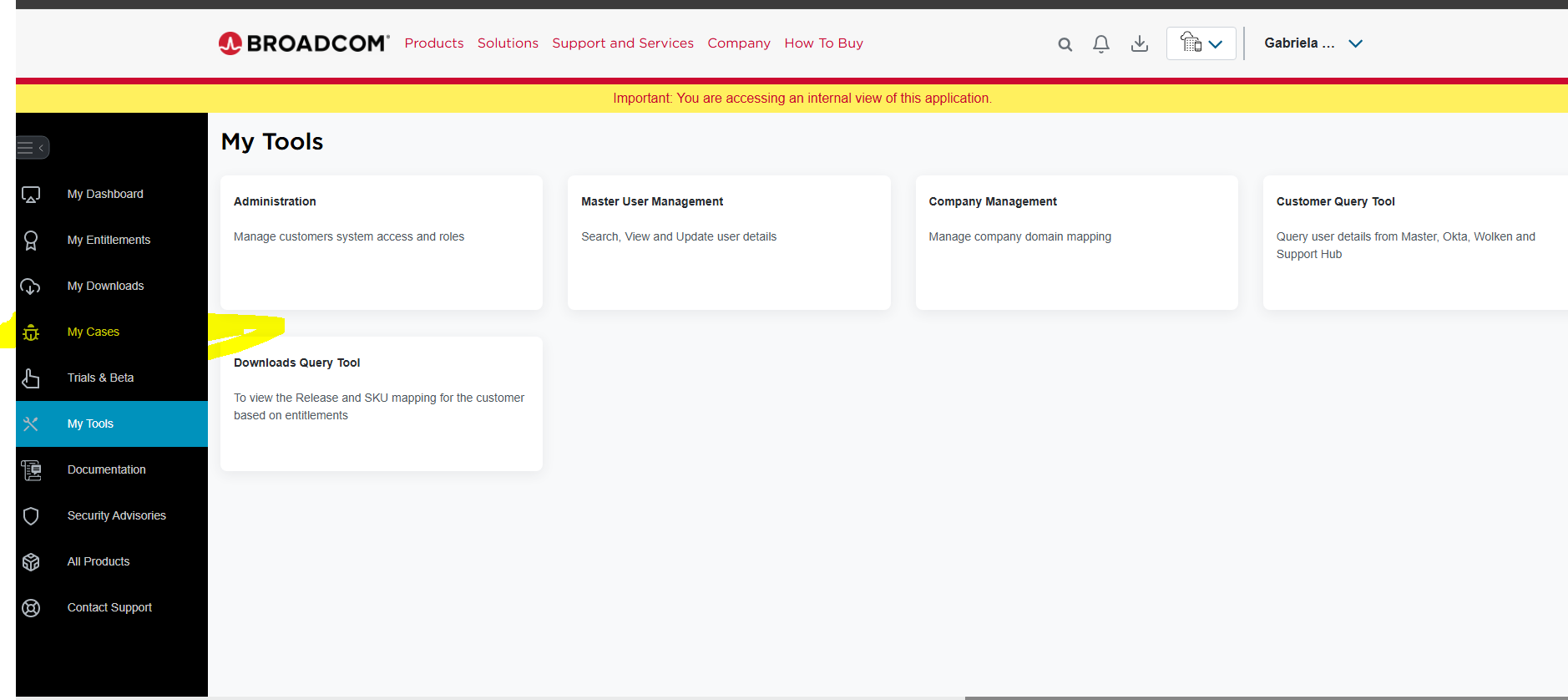
  1. Once in the Customer Support Portal head over to My Cases.
 

A screenshot of a computer

AI-generated content may be incorrect.


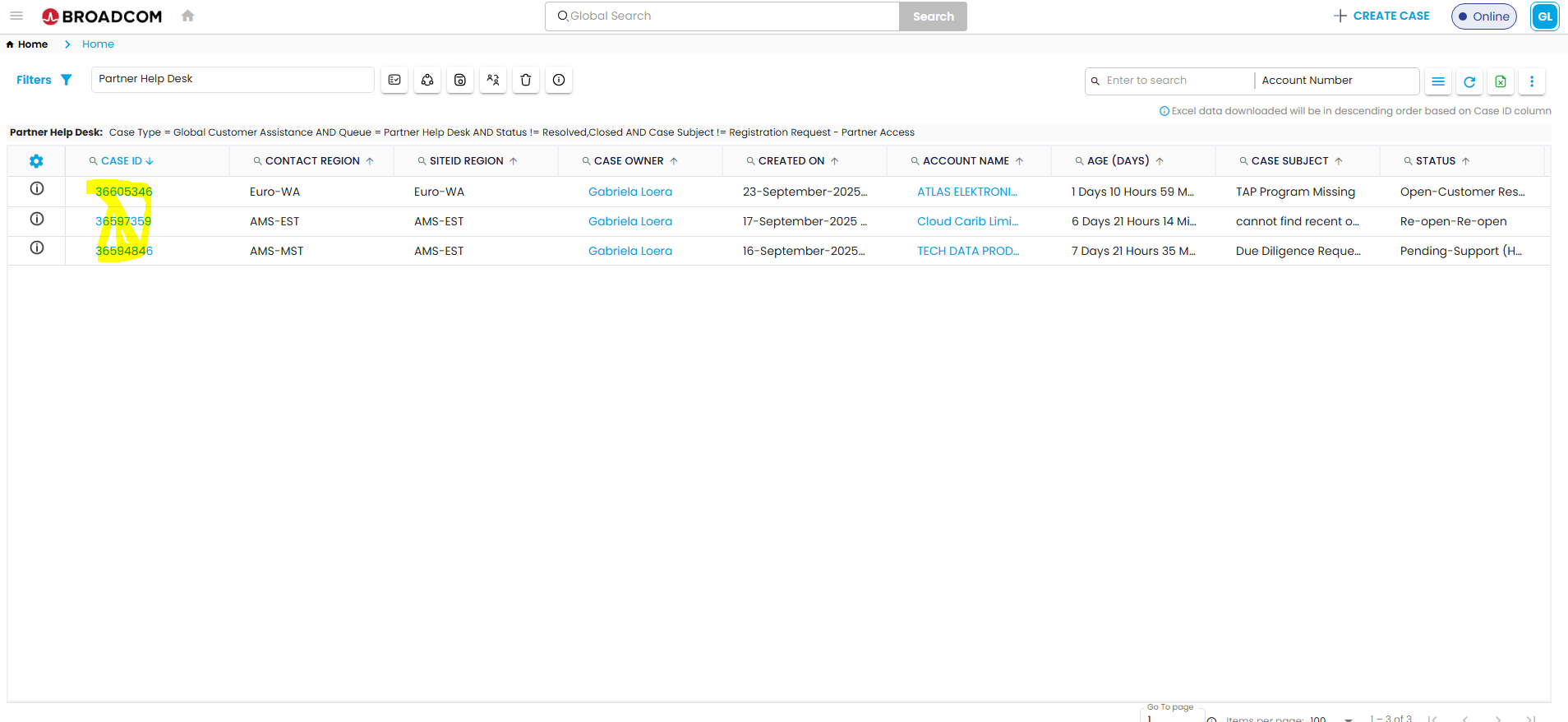
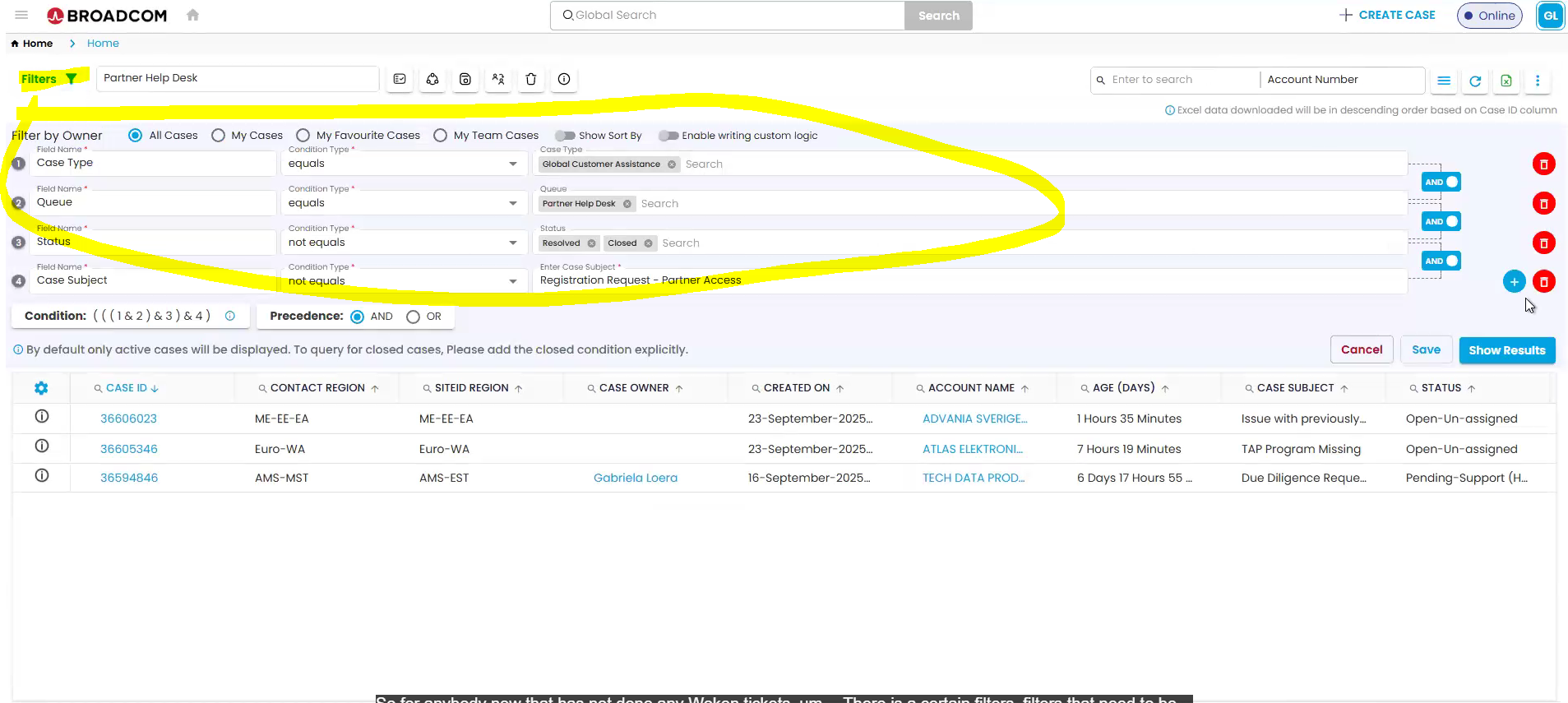
  1. You will be directed to Wolken. If this is your first time, please set up your filters as shown below and save. Afterwards, you will have access to regular Wolken tickets.
A yellow circle with text

AI-generated content may be incorrect.


  1. Click on an unassigned ticket number.

A screenshot of a computer

AI-generated content may be incorrect.


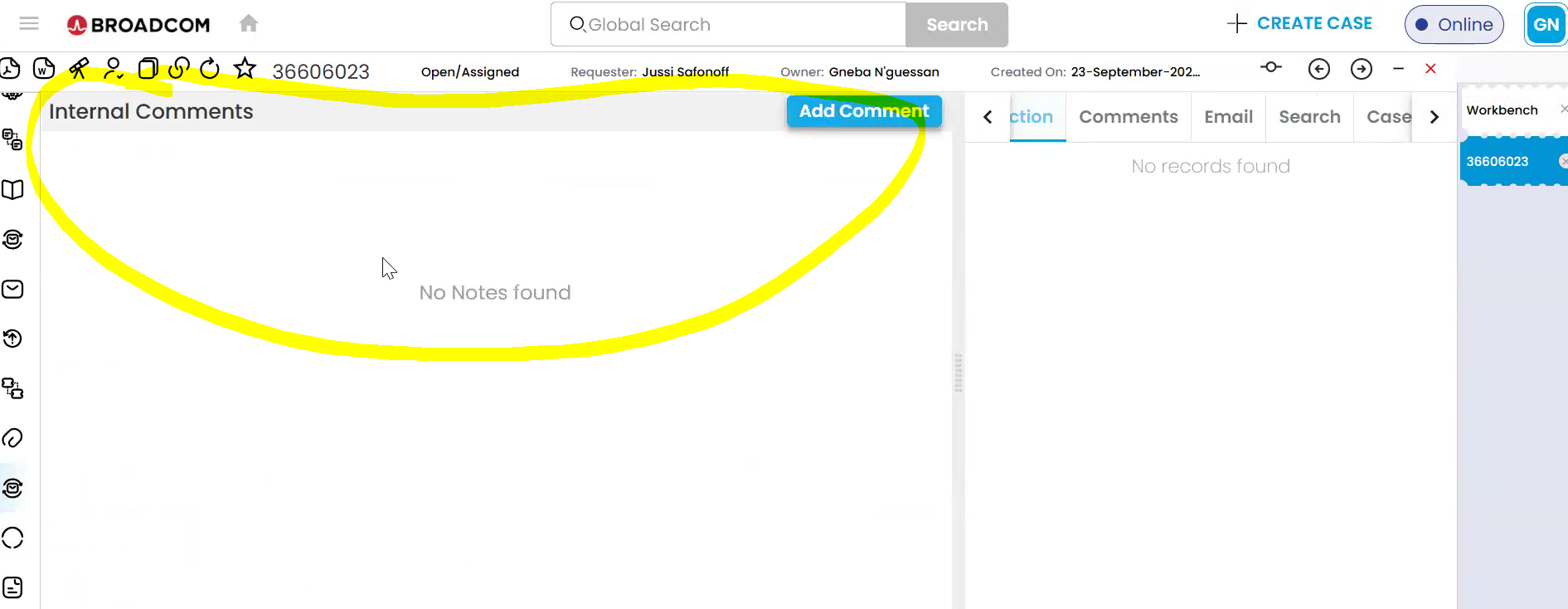
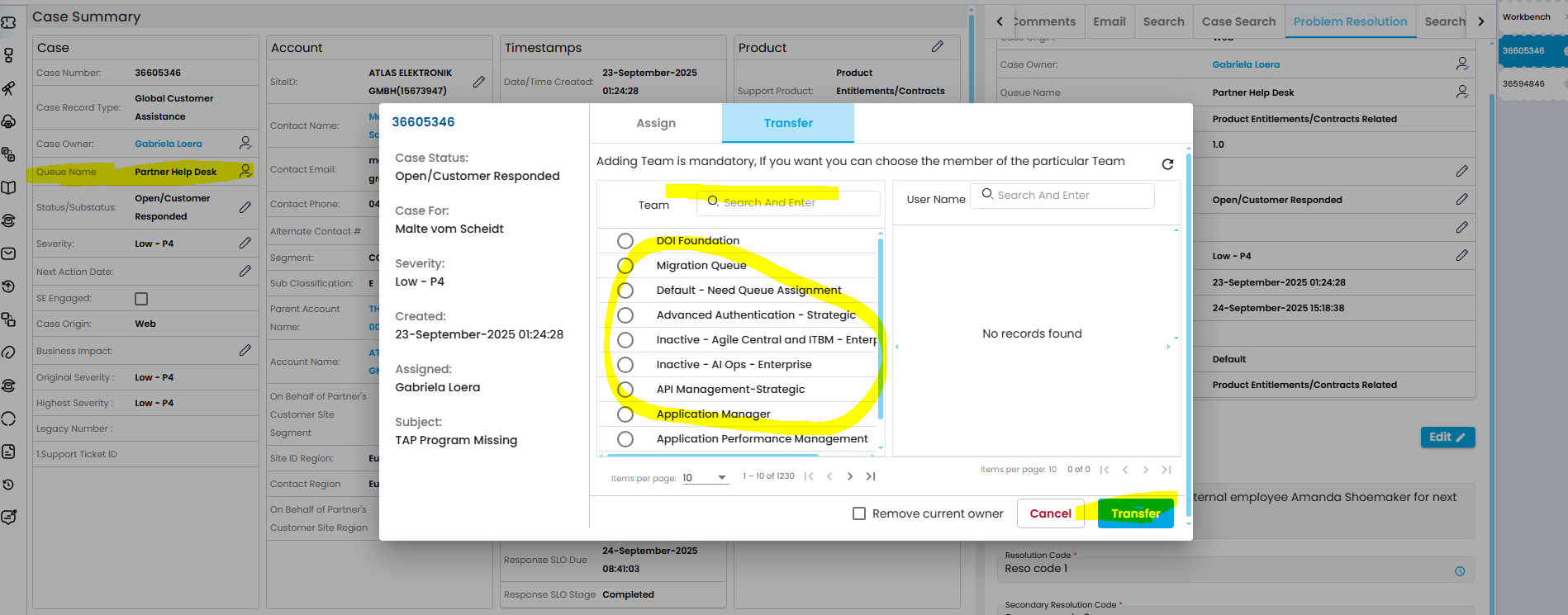
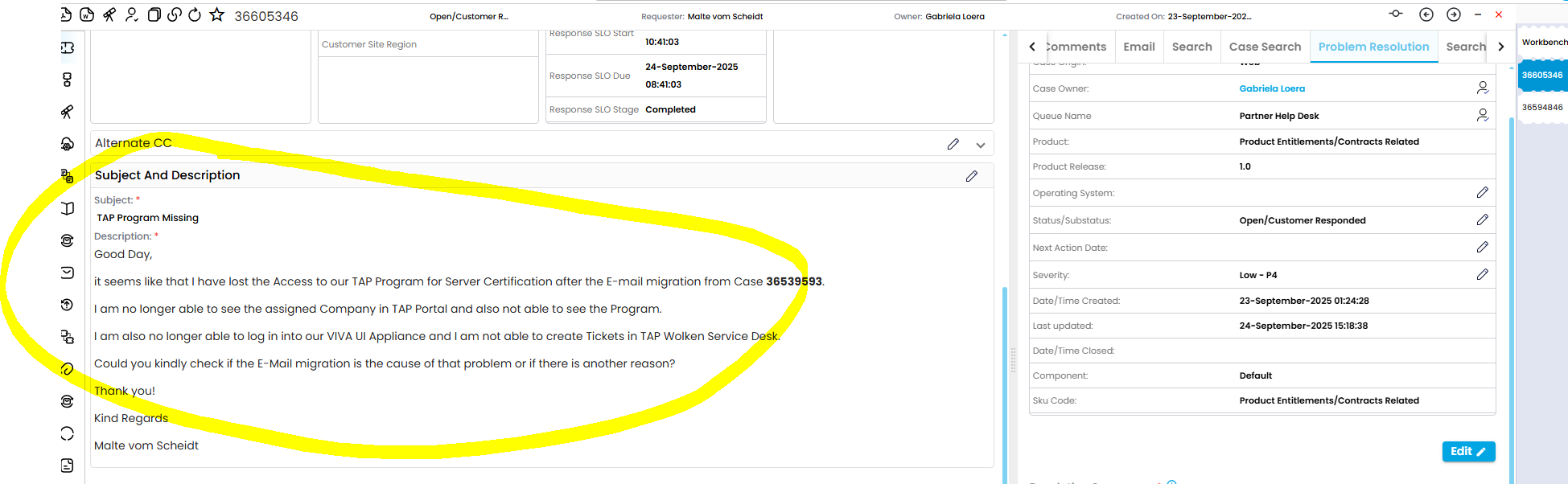
  1. Read the message to see if it belongs to PHD. If it does, you will continue to read the entire document. If it belongs to a team like GCA or another team, you will need to assign it to that specific team, but before you do that you need to add an internal comment stating that PHD does not deal with this particular type of inquiry. The case will be closed on our end.
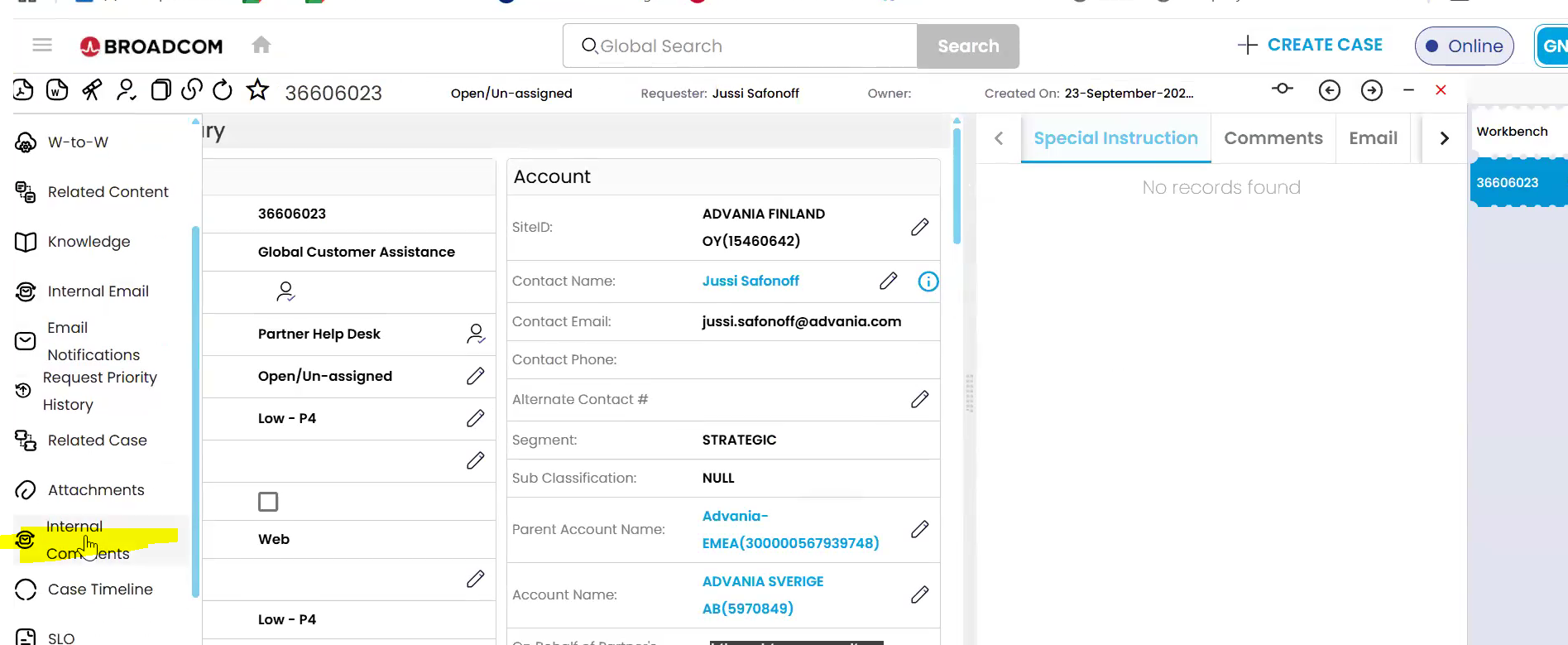
 

A screenshot of a computer

AI-generated content may be incorrect.


A screenshot of a computer

AI-generated content may be incorrect.


A yellow line on a white background

AI-generated content may be incorrect.

A screenshot of a computer

AI-generated content may be incorrect.


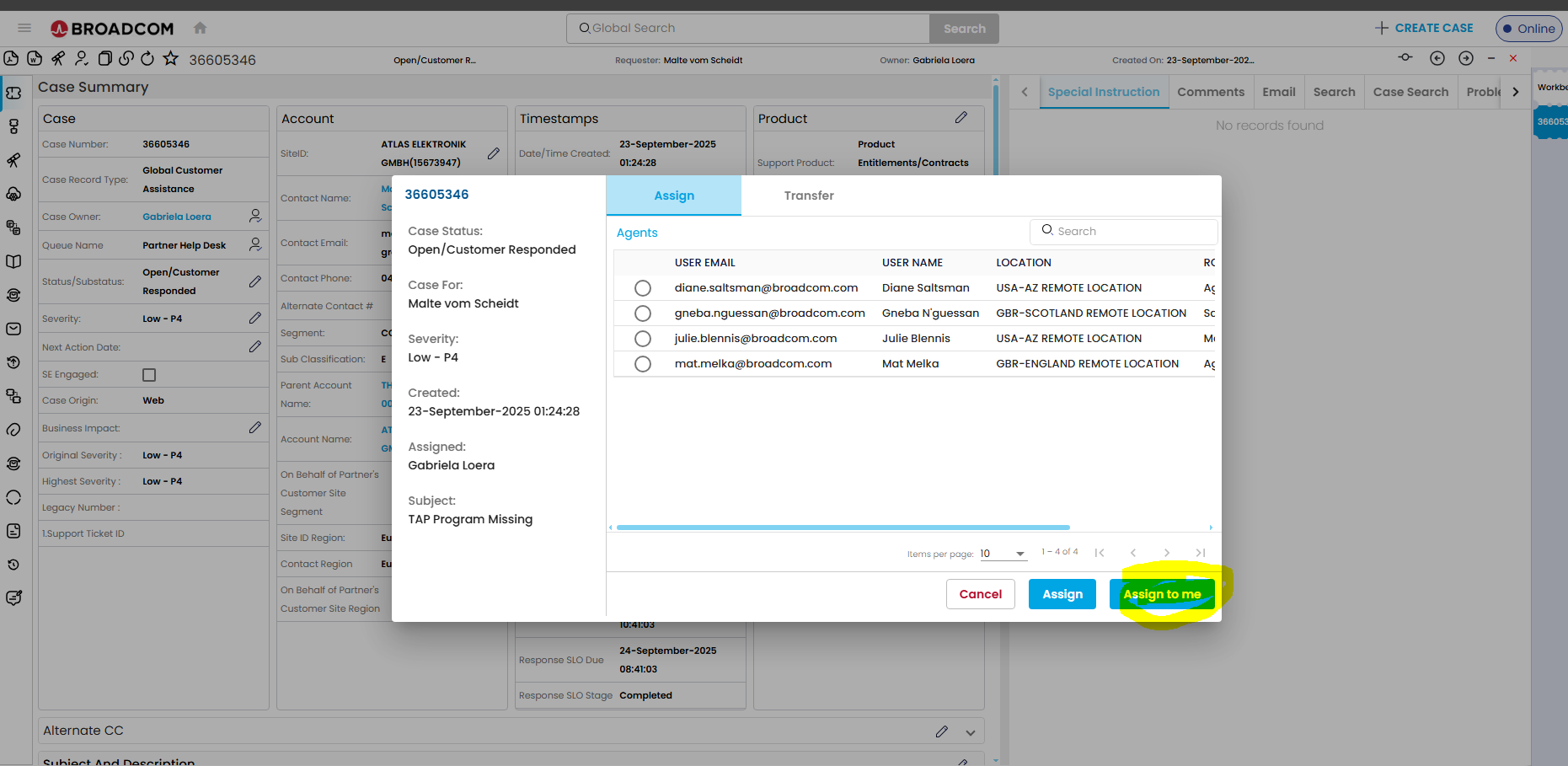
  1. If the case belongs to PHD assign it to yourself.
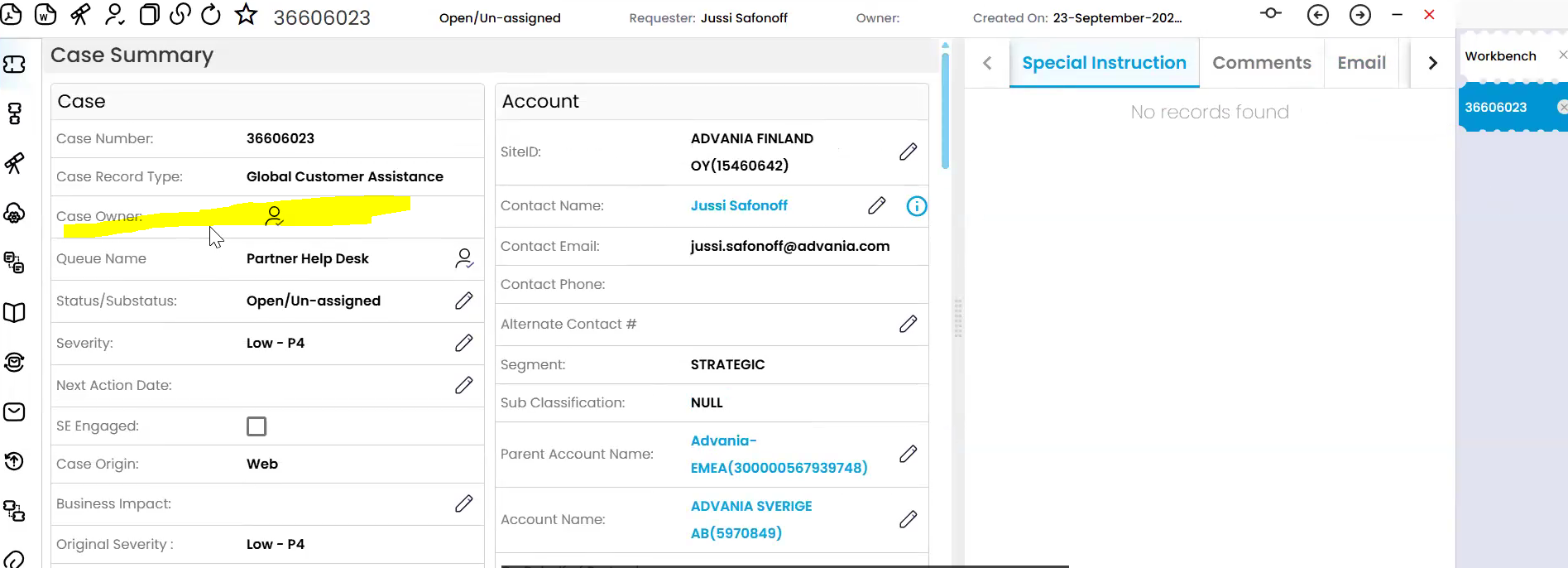
 

A screenshot of a computer

AI-generated content may be incorrect.

A screenshot of a computer

AI-generated content may be incorrect.

A screenshot of a computer

AI-generated content may be incorrect.


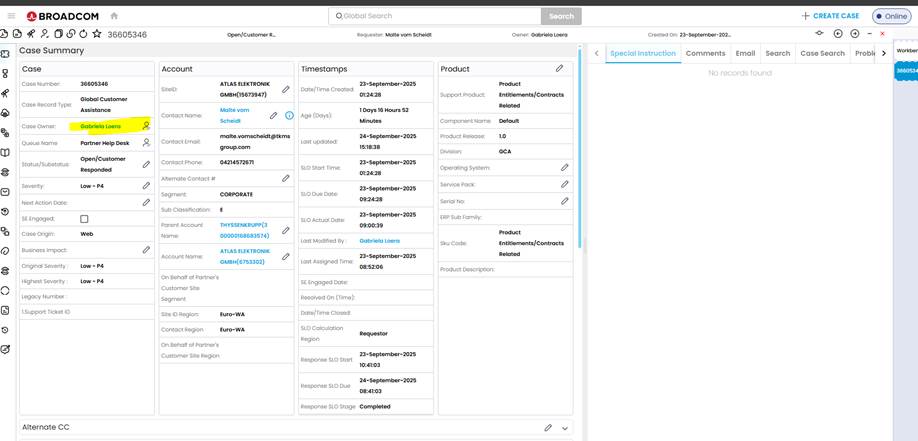
  1. Once the ticket is under your name, check to see if there are any additional comments or emails that were already communicated to the end-user.
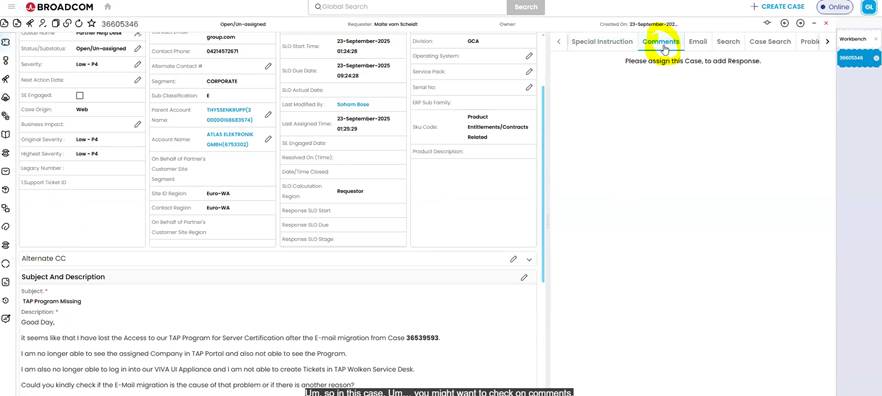
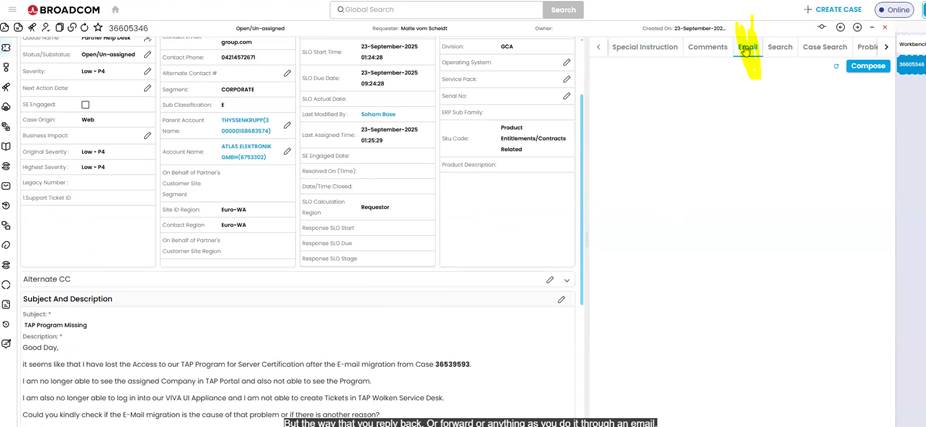
A screenshot of a computer

AI-generated content may be incorrect.

A screenshot of a computer

AI-generated content may be incorrect.


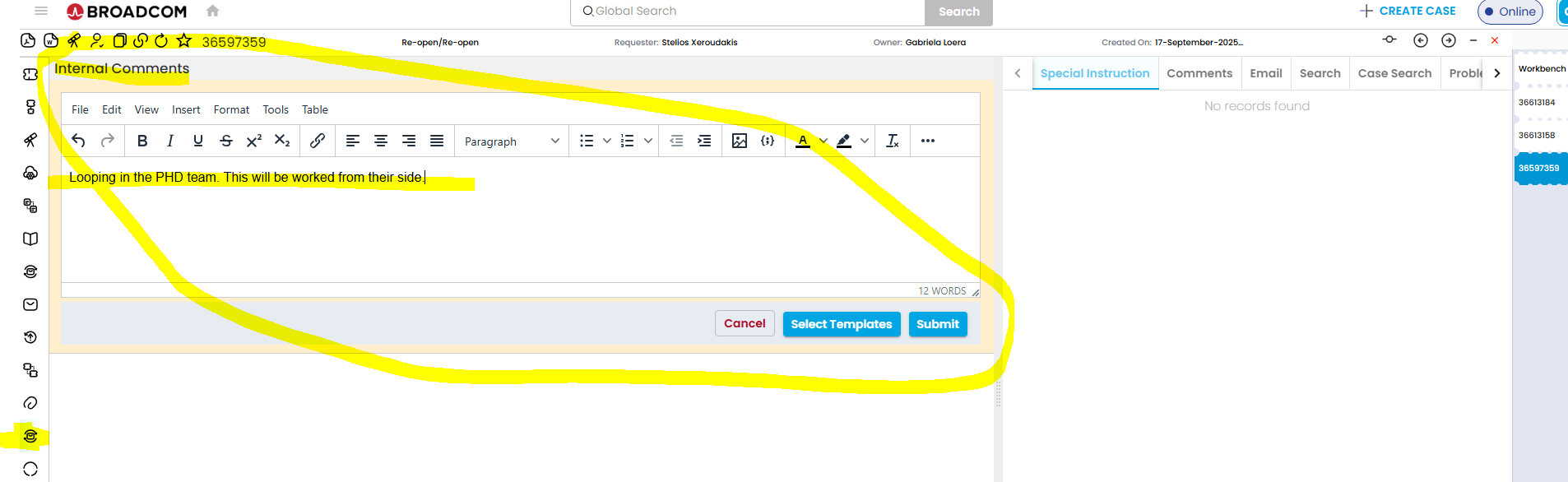
  1. You will begin the process of closing out the ticket by adding an internal comment stating that it was transferred to PHD email.
 

A yellow line on a white background

AI-generated content may be incorrect.


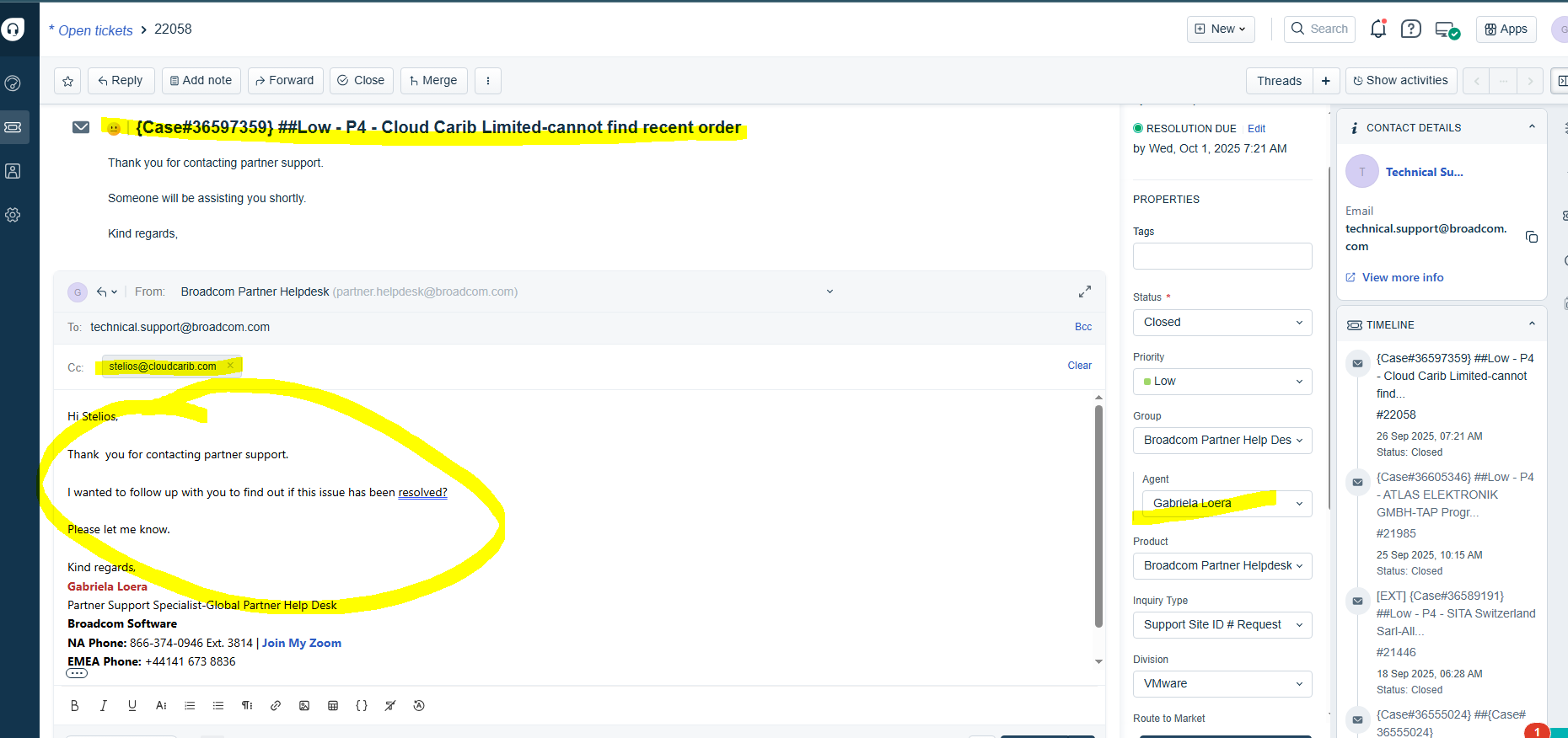
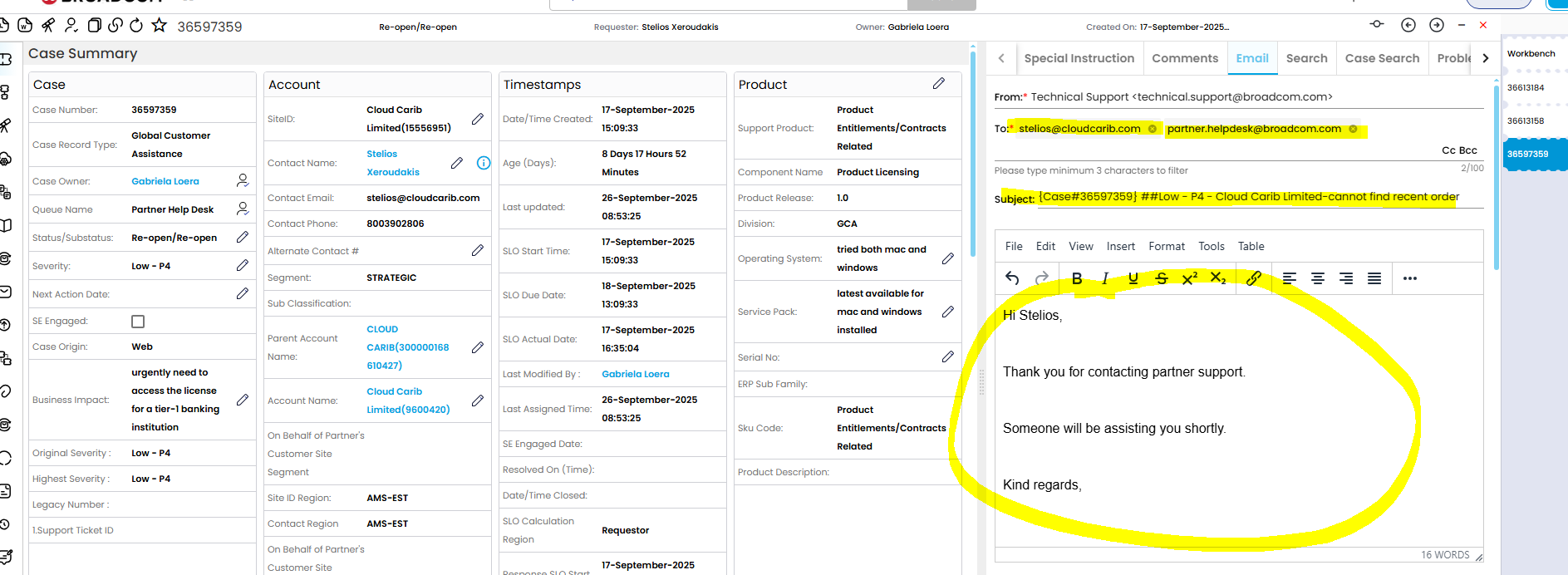
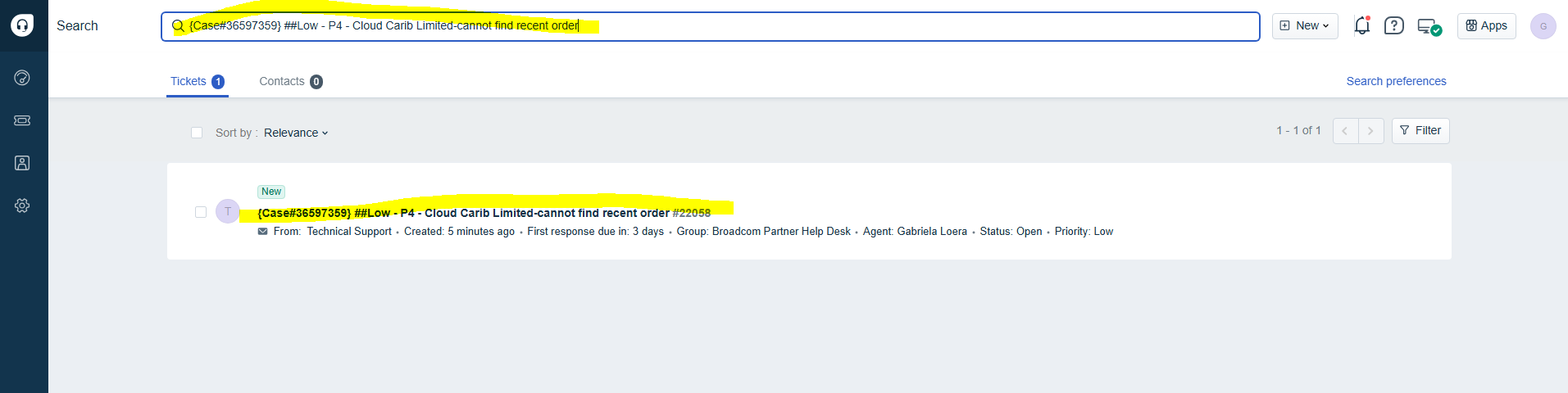
  1. You will respond to the message, add the PHD email domain and let the end-user know that someone from the PHD team will be assisting them shortly. Head over to Freshworks, search for the ticket and assign it for yourself.


A screenshot of a computer

AI-generated content may be incorrect.


A screenshot of a computer

AI-generated content may be incorrect.


A screenshot of a computer

AI-generated content may be incorrect.


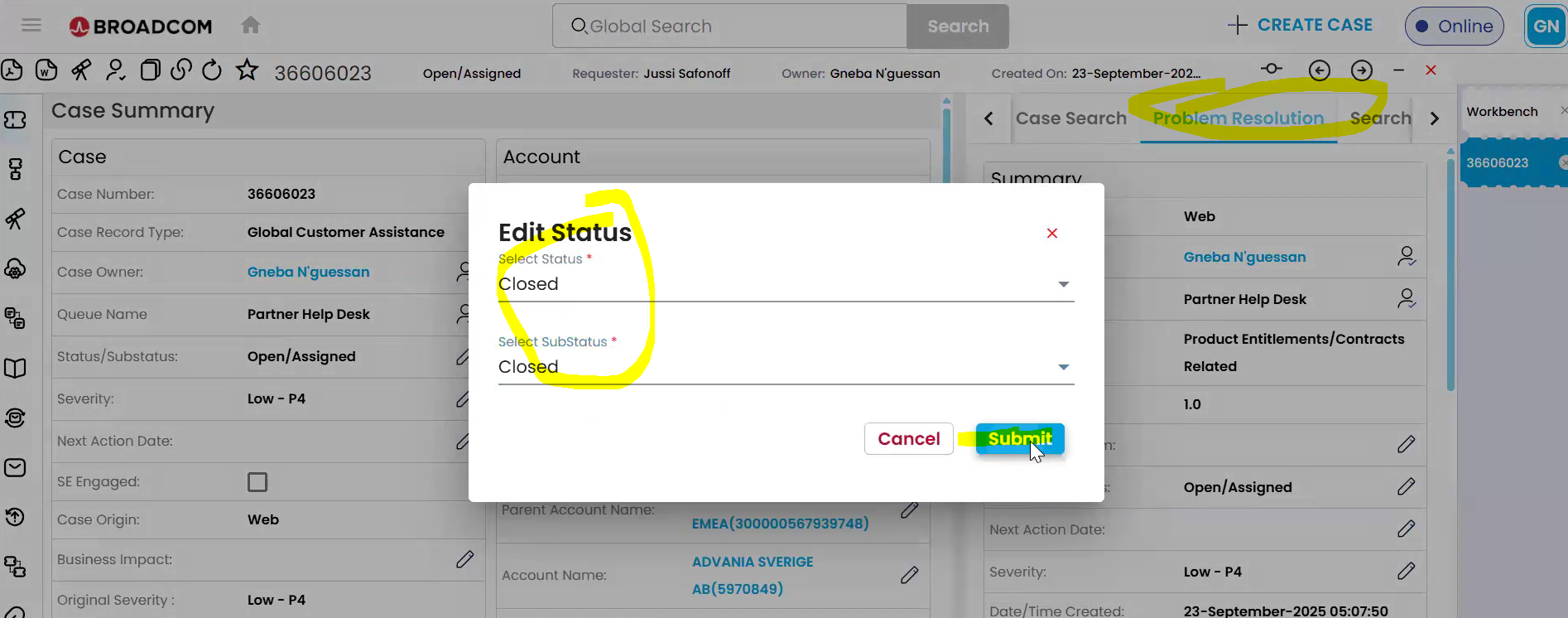
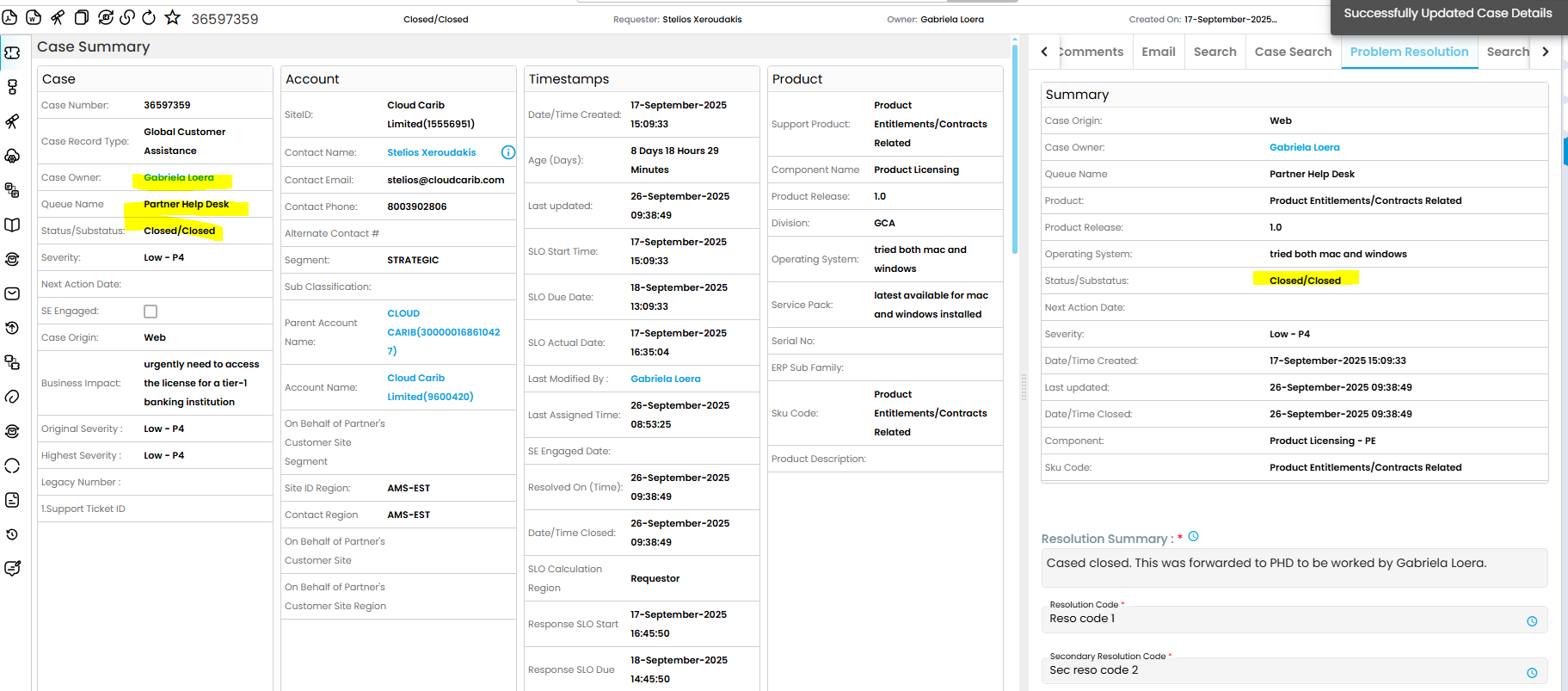
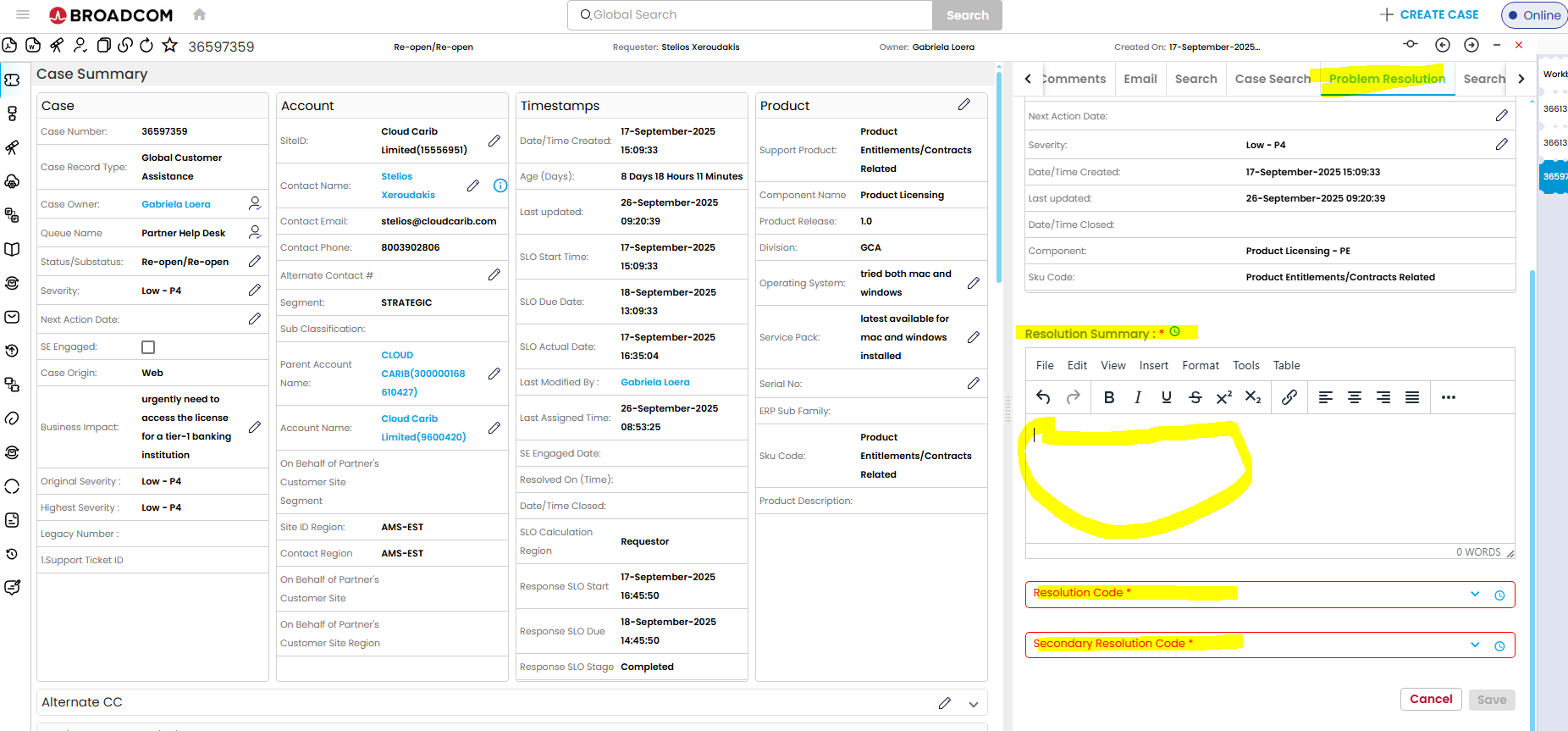
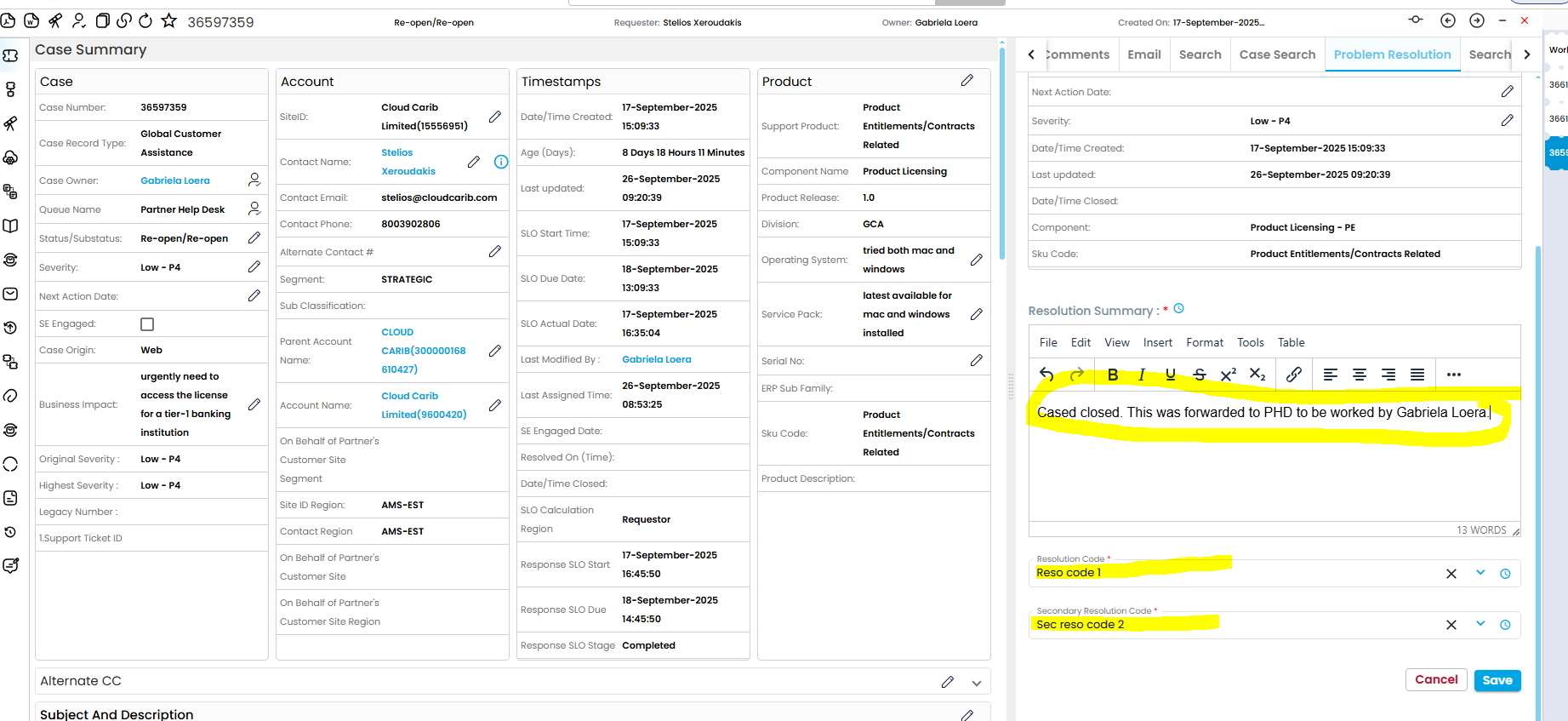
  1. Proceed on closing the Wolken ticket out. Head over to Problem Resolution and fill it out with the Freshworks ticket number along with the correct filters.
A screenshot of a computer

AI-generated content may be incorrect.


A screenshot of a computer

AI-generated content may be incorrect.


A screenshot of a computer

AI-generated content may be incorrect.


A screenshot of a computer

AI-generated content may be incorrect.


  1. Finish off the ticket on Freshworks.

Was this article helpful?

That’s Great!

Thank you for your feedback

Sorry! We couldn't be helpful

Thank you for your feedback

Let us know how can we improve this article!

Select at least one of the reasons
CAPTCHA verification is required.

Feedback sent

We appreciate your effort and will try to fix the article